Templates
Choose which provider fields go into your book notes, in what order, and generate the library Base from the same file.
A template says which fields from your providers become properties on a book note, and what the library Base shows. You can leave it alone: the built-in default does what Library Hub has always done. Write your own when you want, say, a rating from one place and a genre from another.
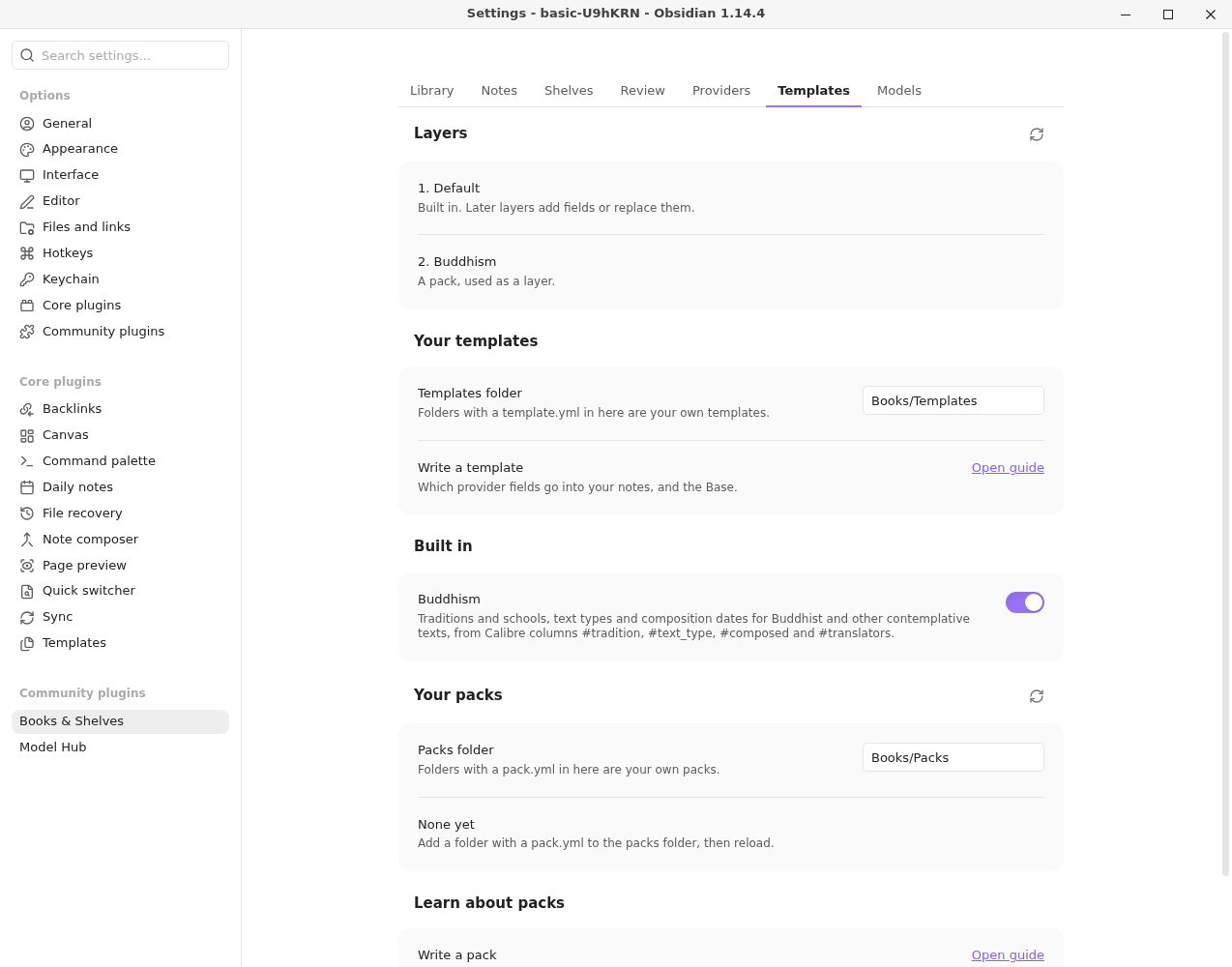
Layers#
The settings show the layers in order: Settings → Library Hub → Templates.
- Default, built in.
- Any packs you turned on. A pack is just a layer; your existing
pack.ymlfiles keep working. - Your templates: folders with a
template.ymlin the templates folder (defaultBooks/Templates), in name order.
A later layer can add fields or replace a field of the same name.
Write one#
name: My library
fields:
  - name: narrators
    type: list
    sources: [audible]
    update: refresh          # also update it later, if you haven't changed it
  - name: genre
    type: list
    sources: [calibre:#genre, audible:genre]   # a Calibre column, then another field
    merge: union             # combine both lists instead of taking the first
  - name: reading_status
    sources: [user]          # nothing is ever written to it for you
base:
  properties: [cover, title, author, series, formats, reading_status]
  views:
    - { name: Library, type: cards }
    - { name: Audiobooks, type: table, filter: 'formats.contains("audiobook")' }
- name is the property on the note.
- sources are tried in order, and the first one with a value wins.
calibremeans the field of the same name;calibre:#genrenames a Calibre column;usermeans the note itself. - merge:
first(the default) orunion, which combines lists. - update:
fill(the default) writes only when the note's property is empty.refreshalso updates a value the plugin wrote earlier, so it can follow a change in the provider. - type:
text,number,list,dateorbool.
Run Sync: Reload packs and templates after editing. Problems are listed on the Templates tab in plain words. A source that names a provider you have not turned on is a warning, not an error.
Differences#
A field can say differences: show. Where a provider's value differs from your note's, the sync preview lists it under Differences from providers instead of changing anything; you switch on the ones to apply. The default template does this for reading_status, started, finished and rating. See Reading activity from providers.
Your edits are protected#
For a refresh field, the plugin remembers what it wrote. If you change the value in the note, it is yours from then on: the sync leaves it and lists it in the preview under Left alone: you changed them. Fields that only fill, and any field whose only source is user, are never overwritten.
The library Base#
Update from template… (on the Templates tab, or the command Update library Base from template) writes Library.base in your shelves folder from the base: part. A view's type is cards, table or list; cover becomes the card image and title is the note's name.
If the file is not there, it is made. If it matches, nothing happens. If you have changed it, you see exactly what would change before Replace, and Undo puts your version back. Shelf Members.base is not touched.