Getting started
Install Library Hub, connect it to Calibre and make a note for every book.
Install#
Both plugins are in Obsidian's community directory.
- Open Settings → Community plugins and select Browse. Search for Model Hub, then select Install and Enable.
- Add a provider in Settings → Model Hub.
- Browse again, search for Library Hub, and select Install and Enable.
Connect to Calibre#
- In Calibre, select Connect/share → Start Content server.
- In Obsidian, open Settings → Library Hub → Library.
- Under Connections, Calibre should show as reachable. If not, select Calibre, then Connect…, check the Content Server address (by default
http://localhost:8080) and select Test.
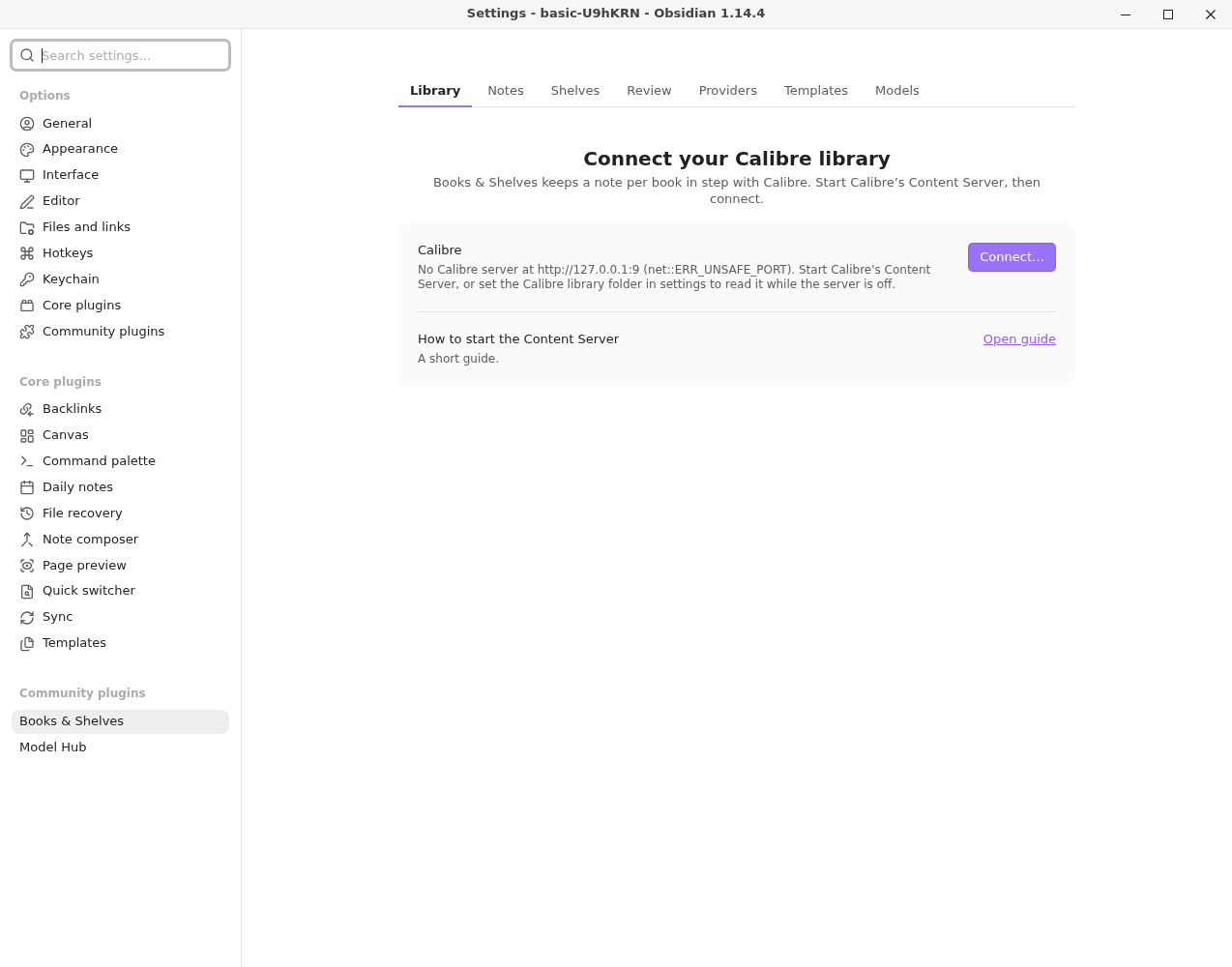
More detail: Connect to Calibre.
Make your book notes#
- On the Library tab, under Sync, select Sync…. Or run Sync: Notes from your providers from the Library panel.
- Read what it would do: which notes it would create, which notes you already have it would match, and any books it can't place with certainty.
- Confirm. Your notes are written to
Books/Library.
No model is used and nothing is written to Calibre.
Add covers#
On the Notes page, under Covers, select Find covers…. Each book note without a cover gets one.
Next#
If something did not work, see Troubleshooting.