Build shelves
Group related books into shelves, by describing what you want or by hand, and find similar books.
A shelf is a note that lists a group of books. Library Hub matches books by the words they share: their titles, authors and the context in their notes. Matching by what books are about, which needs a vector for each book, comes with Topic Map. Where a feature needs it, Library Hub says so in one line: Install Topic Map to ….
What matching by words covers#
On its own, Library Hub ranks books by the words they share, with no model and nothing stored. That covers:
- Similar books: each book note's five closest books.
- A shelf from a description, and Split a subject into shelves: the books that share the description's words are the ones a model reads.
- Suggested next in the reading list: books near the ones you finished last.
- Near-duplicate shelves: by name and by the books two shelves share (see Shelf health).
These need Topic Map, because they work from what books are about:
- Suggesting shelves for the whole library.
- The shelves that suit one book, and offering a new book to them.
- Checking a shelf by subject, with trims and splits.
- Similar books and near-duplicate shelves by meaning, when the words differ.
Describe a shelf#
- Make a shelf from a description gathers the books that share the words of what you describe (and of any key terms you add), and a model keeps the ones that belong. The window before the run says how many books it will read and what that costs.
- Only the key terms skips the model and takes the books whose title or description names a term: right for a series or a name.
- Split a subject into shelves takes a broad subject and proposes several shelves within it, from the books that share its words.
Each becomes a suggestion note in Books/Review/Shelves. Accept, rename or reject each one, then select Apply… in Settings → Library Hub → Shelves, or run Shelves: Apply shelf suggestions. Accepted suggestions become shelf notes in Books/Collections.
Words match words: a description that says "lighthouses" doesn't find a book called The Lighthouse Log. Use the words your books use, or add them as key terms.
How shelves are kept in notes#
A shelf note has a shelf_id. A book note lists the shelves it is on in shelves, and the ones it is kept off in shelves_exclude: taking a book off a shelf (the × in the Shelf view) moves it from one to the other, so nothing puts it back by itself. Shelf Members.base, beside your shelves, shows each shelf's books from these two keys.
Notes made before 0.1 used collections, collections_exclude and collection_id, and rule shelves held books by clusters. When Library Hub finds those, a notice offers Move shelf keys to their new names…. Its window lists what moves first; Move keys then writes it as one run you can undo. Every book a rule shelf held gets the shelf in shelves, so no shelf loses a book. Library Hub rewrites its own Bases; a .base of your own that names the old keys is listed for you to change, and left as it is.
Add a book by hand#
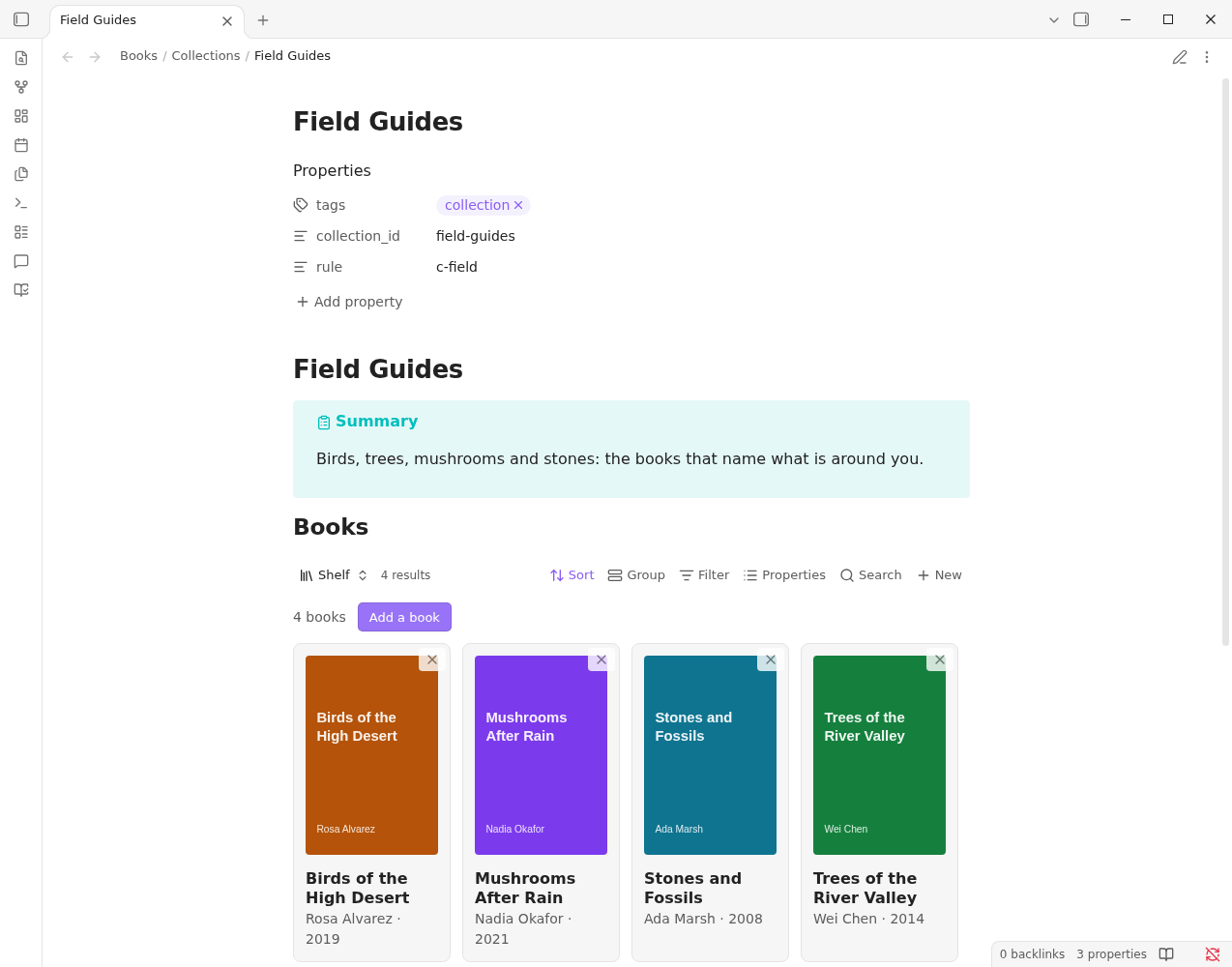
Run Shelves: Add a book to this shelf from a shelf, or use the Shelf view: it has search to add a book, and removes one from a shelf in a click.
The Shelf view#
Shelves show as cards with covers in the Shelf view, a view for Bases. Existing .base files that used the view keep working.
Find similar books#
Run Shelves: Find similar books, or select Find similar books… in Settings → Library Hub → Shelves. Each book note gets links to the five books that share the most of its words. A book that shares a rare name or term with another (a people, a teacher, a practice) finds it; books alike only in subject need Topic Map.
All of these can be undone.
New books and growing a shelf#
New books can be brought in through one pass you review: see New books. To find books that fit a shelf and aren't in your library yet, see Grow a shelf.
Check your shelves#
Check shelves finds pairs of shelves that look like the same shelf, and keeps proposals for you to review: see Shelf health.