The Library panel
One side panel for the open book, the open shelf, the whole library and what has run. Most commands are buttons in it.
Select the Library ribbon icon, or run Library: Open the Library panel. It sits in the right sidebar and opens by itself the first time you open a book note (turn that off in Settings → Library Hub → Notes → Library panel; close it and it stays closed until you restart Obsidian). Three tabs run along the top, and the panel picks one for the note you have open: Book for a book note, Shelf for a shelf note, Library for anything else. A tab you pick by hand stays until you open a different kind of note.
Book#
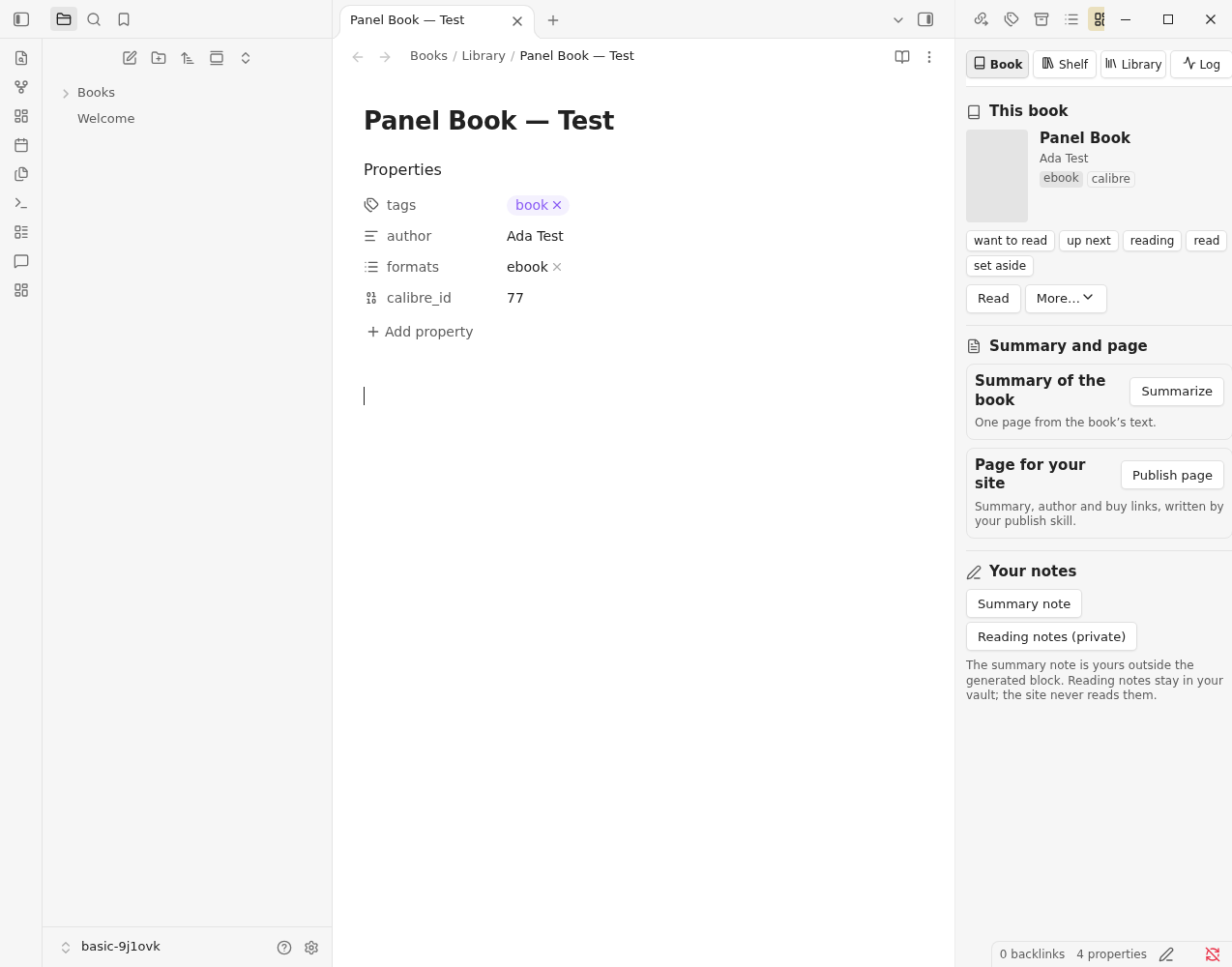
- Read at the top, and the More menu (⋯) beside it: look up metadata, replace the cover, write chapter notes, add to up next, open with, open the highlights note. Every tab's ⋯ menu ends with Report a problem… (see Troubleshooting).
- This book: cover, authors, formats and providers, the reading status with a button for each of the others, and the shelves.
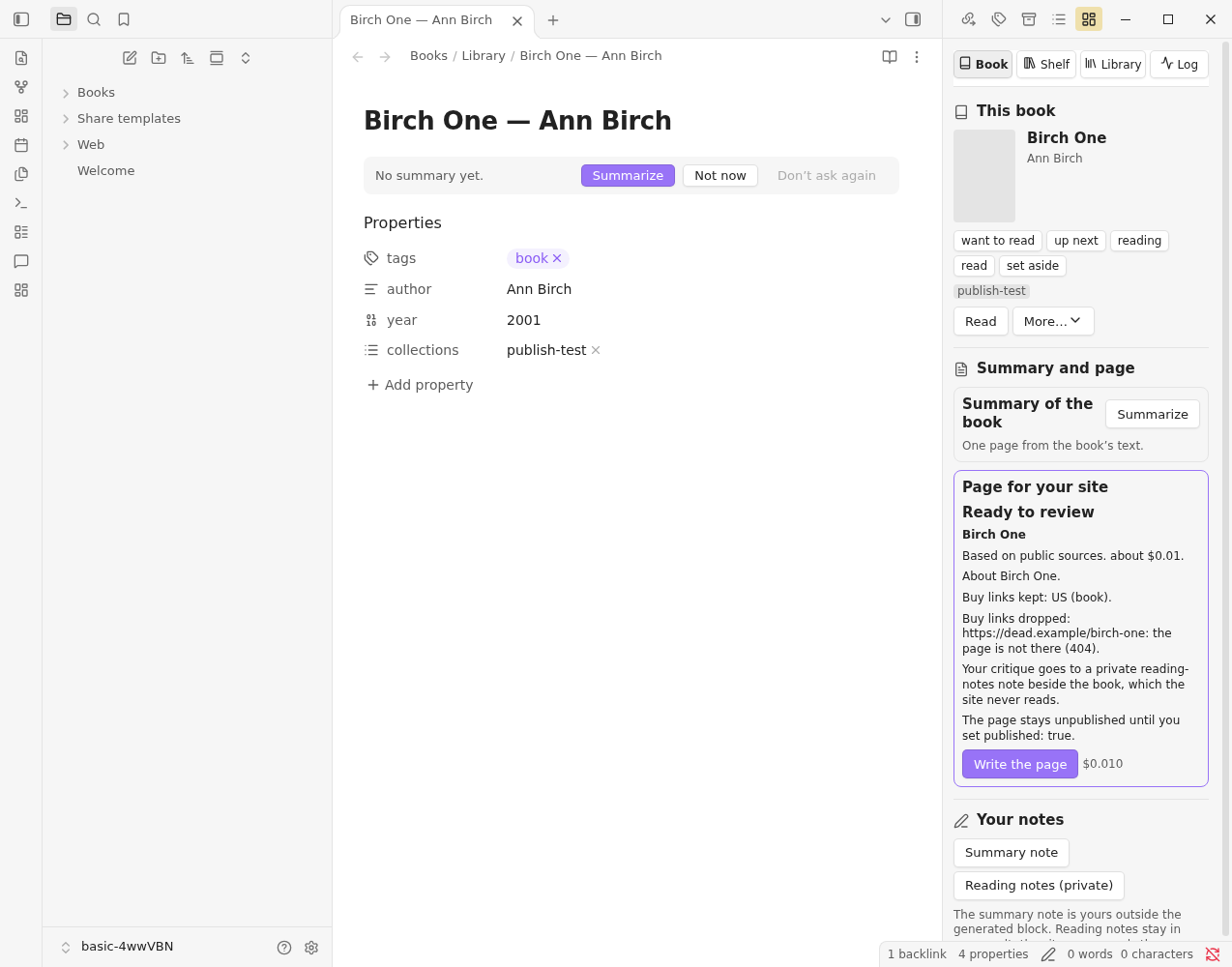
- Summary and page: Summarize and Publish page each show what they are doing: Asking the model… with the time so far and Cancel, Ready to review, Written, or Failed with the reason in words. A call Model Hub refuses (it could cost more than the limit for that task, say) fails here, with a button to the setting that fixes it, and nothing is written.
- Your notes: opens the book's summary note (made empty and unpublished if there is none) and its private reading notes. Your own text in the summary note is never edited by publishing.
A page waits for your say before anything is written:
Shelf#
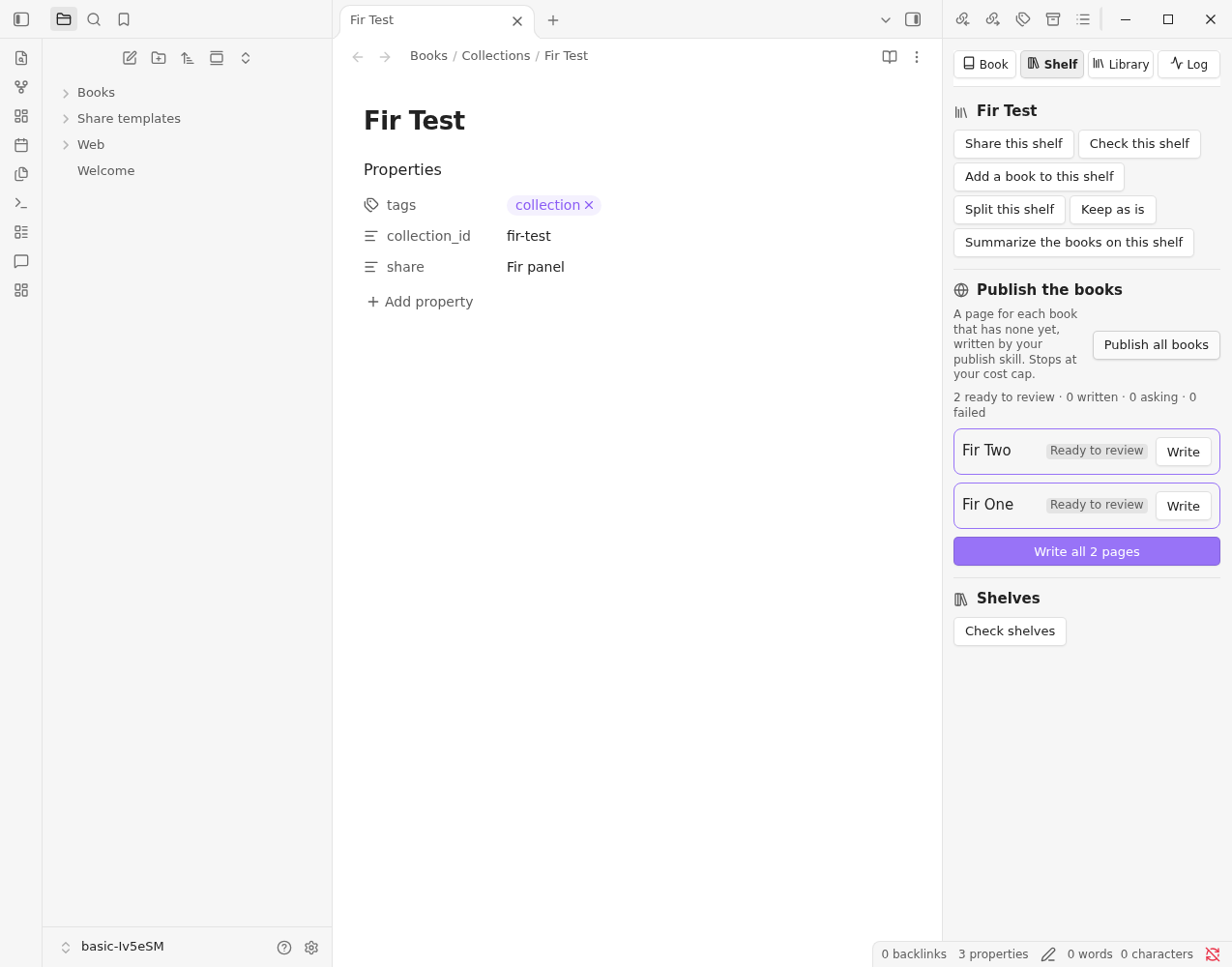
For the open shelf note: Share this shelf, Add a book to this shelf, Keep as is, Summarize the books on this shelf and Grow this shelf; and Publish all books, which asks for a page for each book that has none and shows one row per book. Write all appears when two or more are ready. Below, Check shelves, which finds pairs of shelves that look like the same shelf, and a line saying that checking shelves by what their books are about needs Topic Map.
Library#
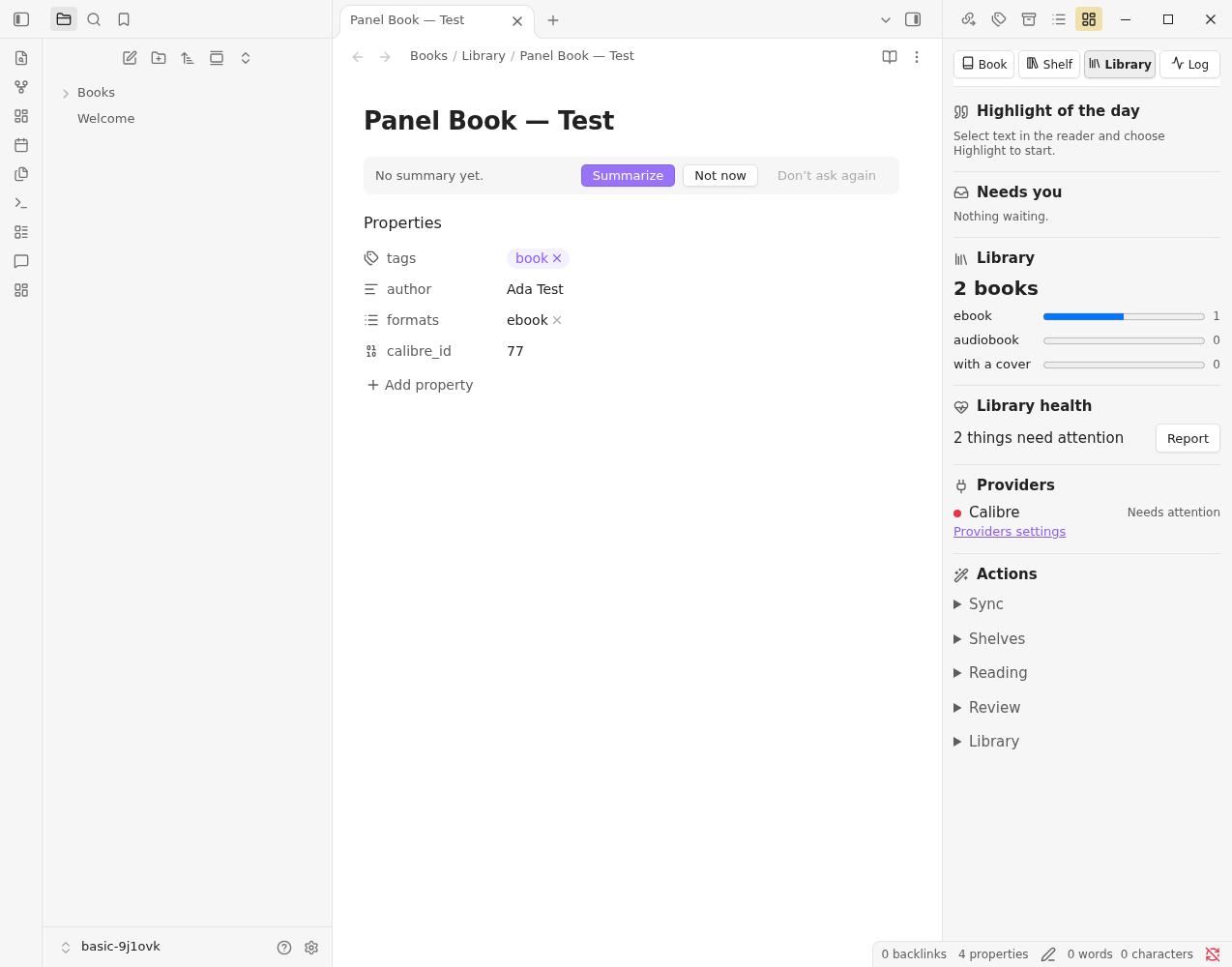
Reading now, your reading goal, the highlight of the day, Needs you (one row per kind of thing waiting, each with its count, opening where you deal with it: changes waiting for Calibre, Calibre conflicts or failures, metadata rows, author merges, shelf suggestions, differences from providers, shelf proposals, pairs of near-duplicate shelves, new books to shelve, and new books to bring in; something it can't read shows as a row that names the cause), the library at a glance, providers (also summed up under the tab's title), and Activity: jobs that are running or have run, with progress, time and cost, and Cancel while one runs, then the changes you can Undo. Last comes one fold per area (Sync, Shelves, Reading, Review, Library), each listing the commands that need no particular note. Resync now and Undo a notes sync sit at the top.
The command palette#
Obsidian's command palette lists eight commands:
| Command | What it does |
|---|---|
| Library: Open the Library panel | Opens the panel. |
| Sync: Resync now | Brings notes, covers and the library Base up to date. |
| Sync: Undo a notes sync | Takes back a run. |
| This book: Summarize (one page) | Starts the summary job; the panel shows it. |
| This book: Publish this book… | Starts the publish job. |
| This book: Read | Opens the book in the reader. |
| Shelves: Share this shelf… | Writes the shared shelf. |
| Shelves: Publish this shelf’s books… | Starts a publish job for each book without a page. |
Every other command is a button in the panel and runs the same code. This guide names each by its area and its button, such as Sync: Update author notes: look for it in its area's fold on the Library tab, or on the Book or Shelf tab for one that works on the open note. Right-click a book note for the ones you use most. If you had set a hotkey on a command that moved, Library Hub lists it once, the first time it starts after the update.