Highlights
Keep passages from the books you read, with a link back to the exact place, and one brought back each day.
Making a highlight#
In the reader, select some text and choose Highlight in the bar above the page. The text is marked in the book, and saved in a note for that book.
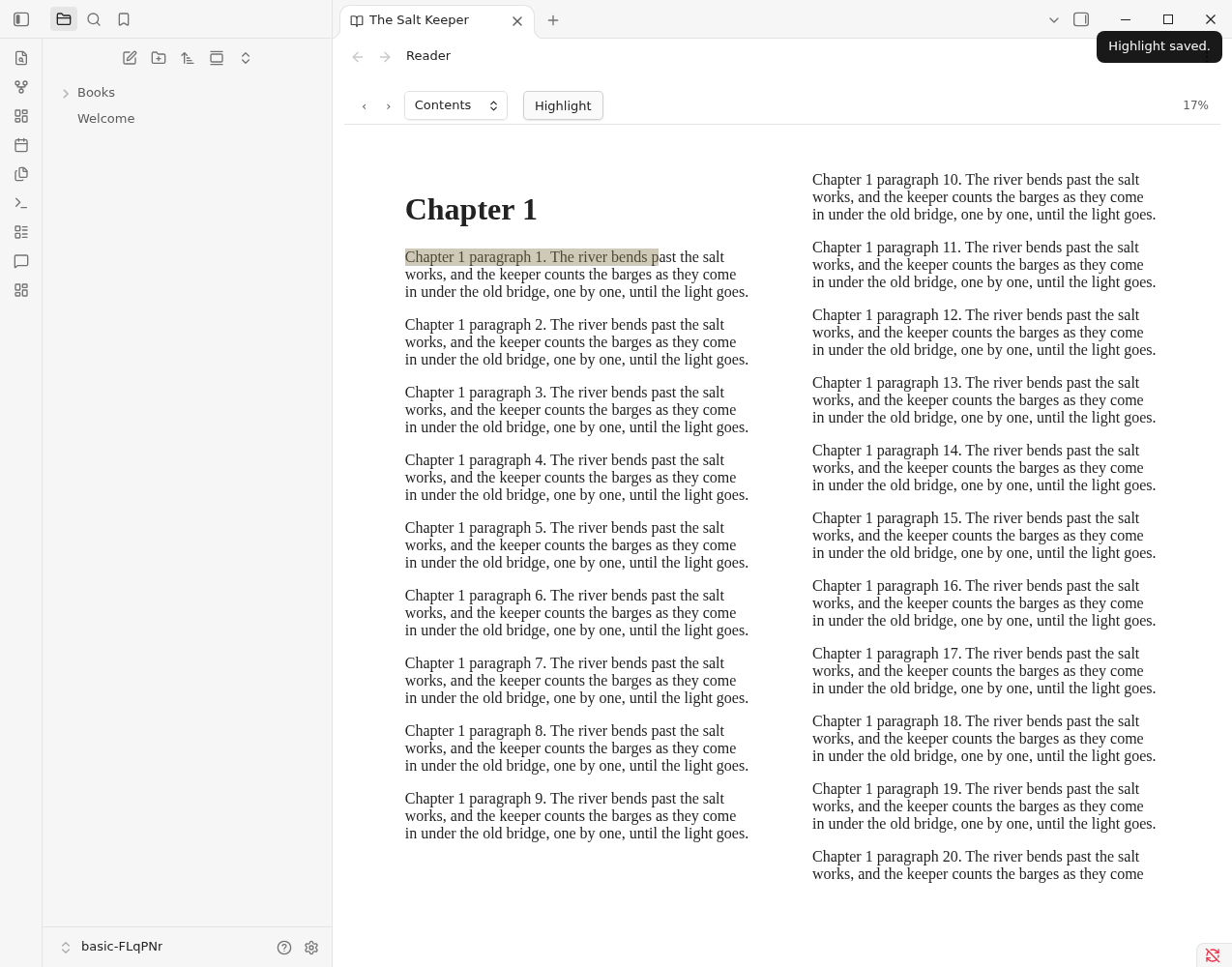
Select the same passage again and it says it is already highlighted. Select a marked passage to open a small menu: Remove highlight, or Open highlights note.
Highlights work in EPUB, AZW3, MOBI and PDF books.
The note#
Each book gets one note, Books/Highlights/<book name> (highlights).md (change the folder in Settings → Notes → Highlights). It is made with your first highlight. A highlight is a callout:
> [!quote] Chapter 1
> The river bends past the salt works.
>
> [Read in context](obsidian://library-hub-read?note=…&hl=h_k3f9) · 2026-10-09
> %% hl {"id":"h_k3f9", …} %%
The note is the only place highlights are kept. Edit it freely: write above, below or between the callouts, or add a line > **Note:** … inside a callout for your own comment. The hidden %% hl … %% line holds the place; leave it alone. Delete a callout and the highlight goes from the book too, the next time you open it.
Read in context opens the book at the passage.
A PDF kept in your vault gets Obsidian's own link instead, such as [[Field Notes.pdf#page=3&selection=4,0,6,12|p. 3]]. It opens the page in Obsidian's PDF view with the words selected, and works without Library Hub.
When a book changes#
Each highlight keeps a little of the text just before and after it. When the book opens, every highlight is checked against its words:
- The words are where the highlight points: it is drawn there.
- They moved (the book was converted again, or is a different edition): the reader looks for them, with the text around them, in the same chapter, and draws the highlight where they are now.
- They aren't there: the highlight is lost in this edition. It isn't drawn, so it never marks the wrong words. The bar above the page says how many are lost; select it to see them, or to open the highlights note.
Read in context on a lost highlight looks for its words anywhere in the book; if they aren't found, the book opens at the start and says so. Highlights made before Library Hub 0.1 have no text around them, and are checked by their own words alone.
The highlight of the day#
The Library panel shows one highlight a day, the one shown least recently, with Open in the book. Reading: Show a highlight brings it up in a dialog. Turn the panel section off in Settings → Notes → Highlights.
Undo#
Making the first highlight creates the note, and that is logged: the Library panel's Changes you can undo lists it. Individual highlights are not a logged run; remove one from the menu, or delete its callout.