Getting started
Install Topic Map, make a collection from a folder of notes, index it and search it.
Install#
Topic Map is in Obsidian's community directory. Install Model Hub first: it holds the AI keys Topic Map uses.
- In Settings → Community plugins, select Browse, then install and enable Model Hub. Add a provider in its settings and apply a preset on its Tiers tab.
- Browse again for Topic Map, then install and enable it.
- For collections of books, install Library Hub the same way. This is optional.
Open Settings → Topic Map → Setup. Under Connections, Model Hub should say Connected.
Make a collection#
A folder of notes is the quickest start.
- Open Settings → Topic Map → Collections and select New collection….
- Give it a Name.
- Set Source to Notes in a folder and enter the folder's path.
- Choose a Lens: nonfiction for notes that argue, explain or advise; fiction for stories.
- Select Create.
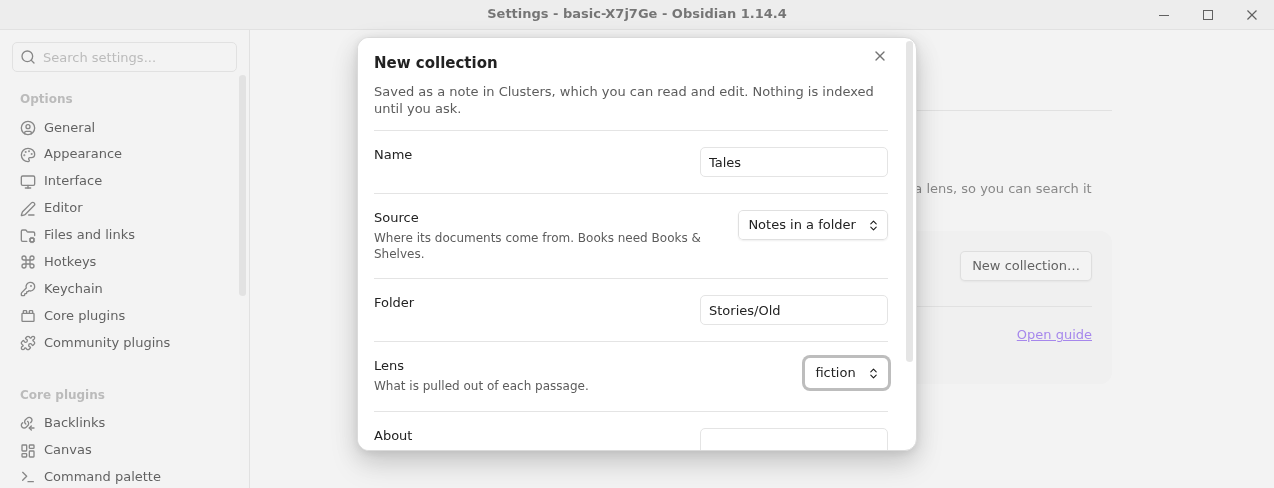
The collection is saved as a note in the Topic Map folder. Nothing is indexed yet.
Index it#
- Run the command Topic Map: Collection: Index… and pick the collection.
- Read the dry run: how many passages it would read and an estimate of the tokens. Nothing has been sent yet.
- Set a spend limit if you want one, then select Index.
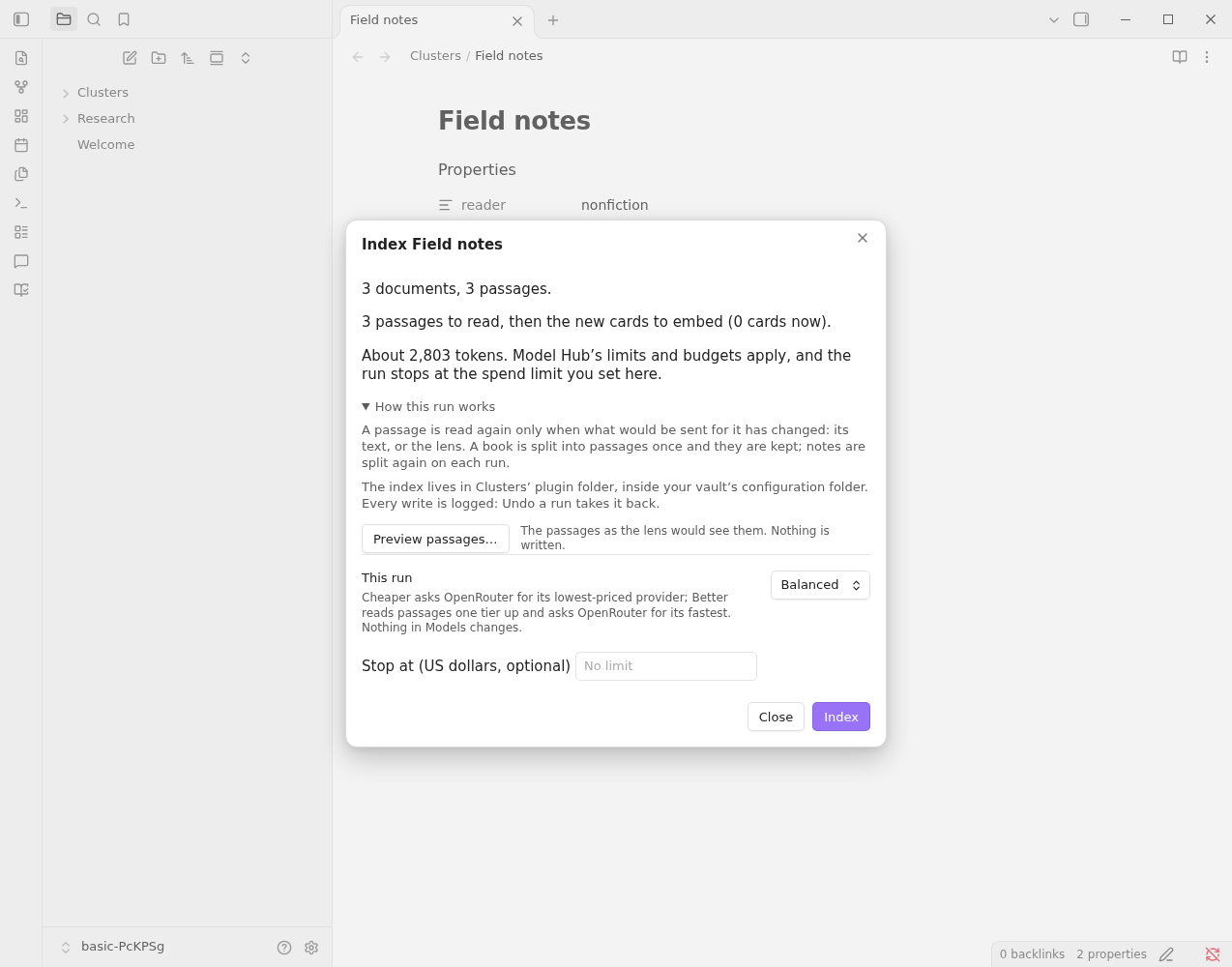
The job shows its progress and its cost so far. You can cancel it; a later run picks up where it stopped.
Search it#
- Run Topic Map: Use: Search. A pane opens at the side.
- Pick the collection and ask a question.
- Select a card to open its passage, with the quoted words highlighted.
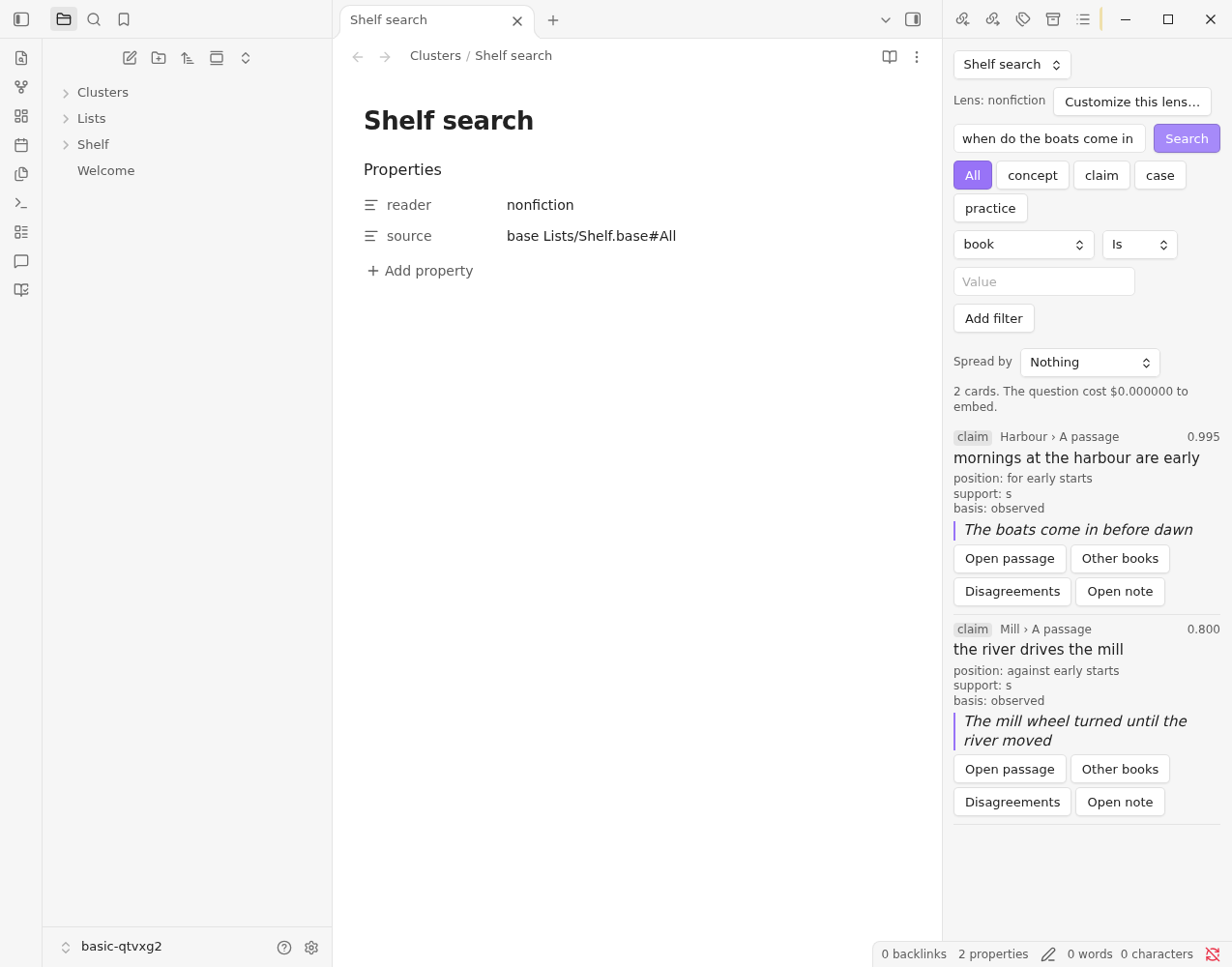
Next: find its topics, or draft a write-up. If something did not work, see Troubleshooting.