Make a collection
Tell Topic Map which books, notes or Base rows to read, and through which lens.
A collection is one note in the collections folder (Topic Map by default), named for the collection. Its properties say where its documents come from and which lens reads them.
Make one from settings#
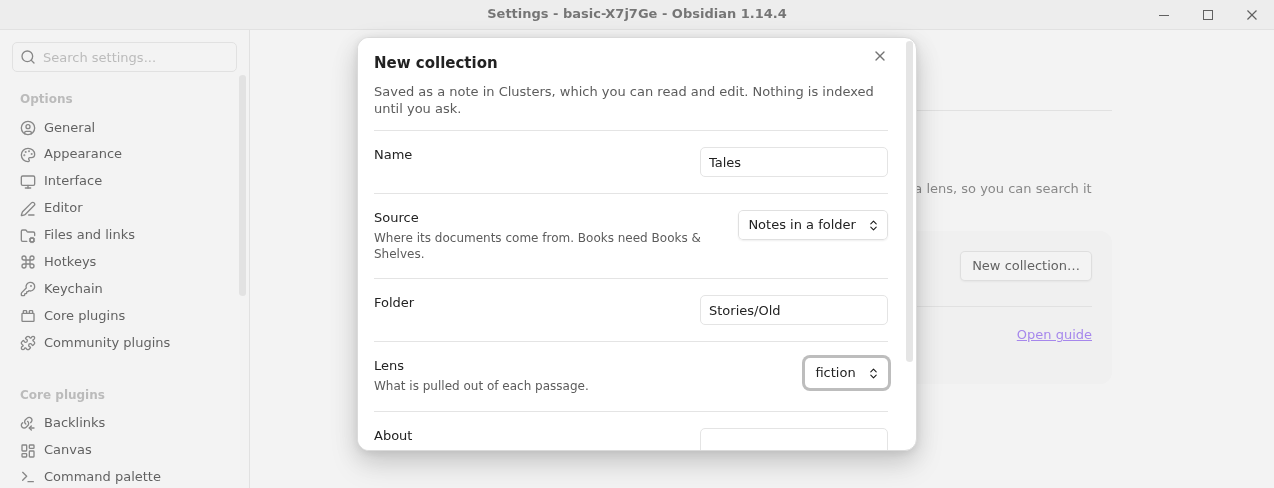
- Open Settings → Topic Map → Collections and select New collection….
- Enter a Name, choose a Source and a Lens, and optionally a line under About saying what the collection is about.
- Select Create. The note opens; you can read and edit it.
| Source | What you enter | What becomes a document |
|---|---|---|
| Notes in a folder | The folder's path, such as Research/Reading | Every note in the folder and its subfolders |
| Notes with a tag | The tag, without # | Every note with that tag |
| Rows of a Base | The Base file, such as Lists/Reading.base | The note behind each row of a view |
| Books on a shelf | The shelf's name | Every book on that Library Hub shelf |
The collection note#
You can also write the note by hand. Its properties:
reader: nonfiction              # the lens: a built-in one, or one of yours
source: folder Research         # books · shelf <name> · folder <path> · tag <tag> · base <file.base>#<view> · prepared <folder>
context: Notes from field work. # optional: what the collection is about
fields: [project, area]         # optional: more note properties to read into every prompt
depth: 3                        # optional, notes: one passage per heading down to this level
skip: ["**/Glossary*"]          # optional, notes: notes to leave out, by path inside the source folder
fields names properties of your notes (or columns of a Base). They are read into every prompt after the ones the lens reads itself, and the search can filter by them. A name the lens already reads (such as status for the notes lens) is ignored, and the collection’s dialog says so with a warning. A survey can fill fields for you: see Survey a collection.
The property for the lens is named reader. A Base source may name a view after #; without one, its first view is used.
How documents are split into passages#
- Notes are one passage each. A note longer than the lens's limit is split at its
##headings. A note's properties become its fields, which you can filter by in search. - Notes by heading: with
depth(on the collection note, orunits.depthin the lens), every heading down to that level starts a passage, and deeper headings stay in their section. The text before the first heading is a passage named after the note. Each passage links its heading, so opening it lands on that section.skipleaves notes out by their path inside the source folder:*matches within one name,**any folders, and<name>the same name wherever it appears, so**/<Series>/<Series>.mdskips a folder's overview note. The run names the notes it skipped. - A Base is read through Obsidian: the view's filters and formulas decide the rows, and each row's columns are its fields. This needs the Bases core plugin.
- Prepared text (
source: prepared <folder>) is a folder of series folders, each with amanifest.tsvand achaptersfolder. Each manifest row is one passage, never split:headingis its title,citesays where it is from,filenames its text inchapters, andbook_titleis its part. Any other column becomes one of the passage's fields. A row whose chapter file is missing or empty is listed, and the other rows are still read. - Books come from Library Hub (version 0.8 or later), which reads each book's EPUB or PDF and gives its chapters. They are split at those chapters, or at their own headings. When a book's chapters are few, or it is a PDF without bookmarks, a model finds where each part begins; Topic Map asks before it makes that call. Each passage remembers where it is in the book, so Open in book lands on it. If a book's text changes later, Open in book finds the passage by its words and says to index the collection again.
Topic Map never reads its own folders as a source.
Preview before you index#
Run Preview passages (the panel’s ⋯ menu) to see each document's passages, and anything left out and why. It writes nothing.
See your collections#
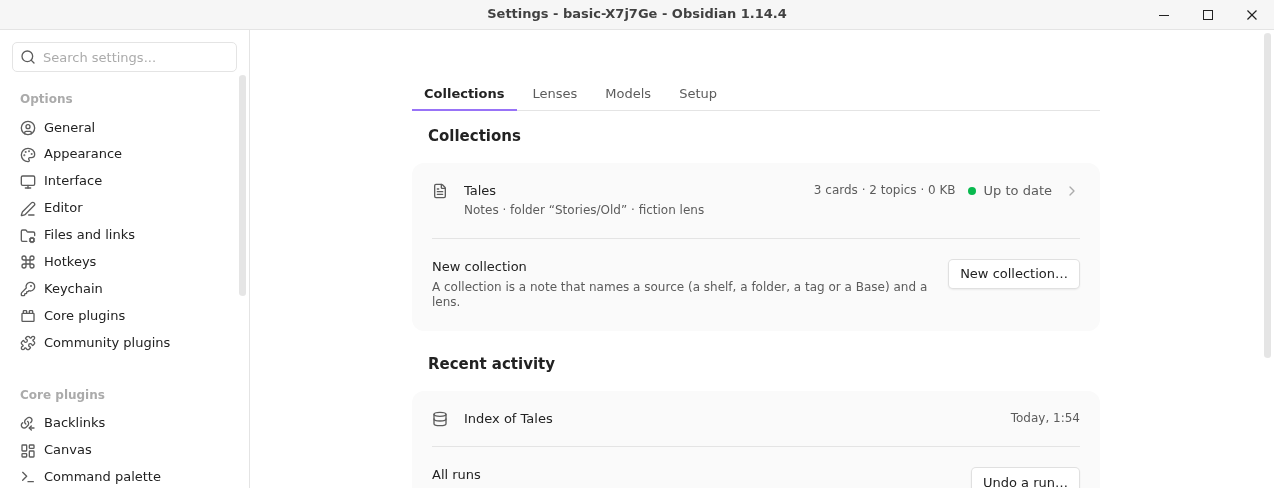
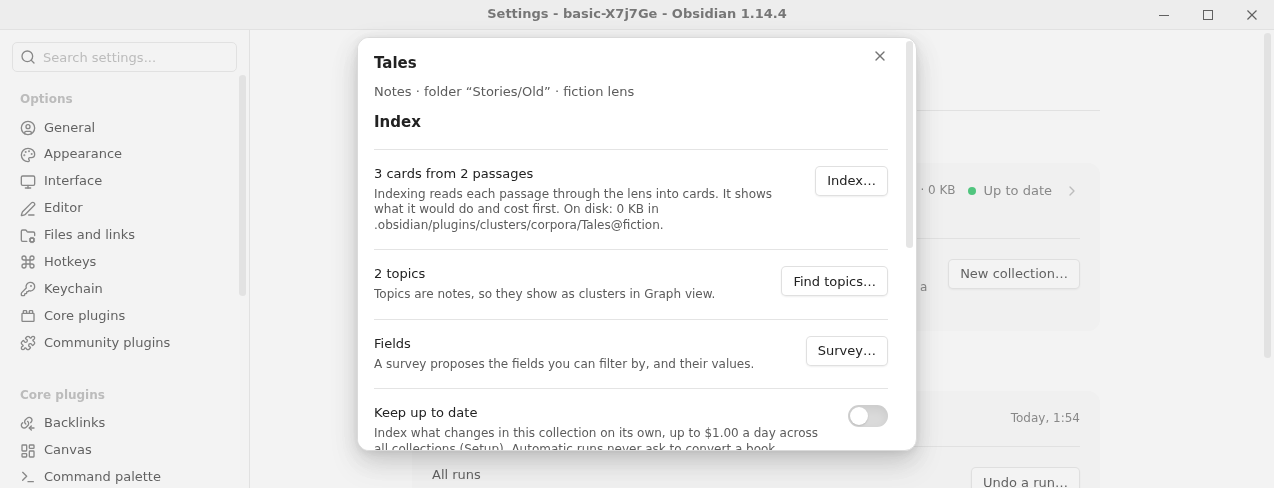
The Collections tab lists each collection with its source and lens, and whether its index is Up to date (an index run would do nothing), what a run would still do ("153 passages to read"), or Not indexed yet. Its counts line gives the cards, the topics and how much the index takes on disk. Select one to open its dialog: Index…, Keep up to date, Find topics…, Survey…, then Search… and Draft…, its recent runs and Open note. The dialog also lists the fields read into every prompt, and, for a notes or Base collection read by a book lens, offers Switch to notes (see the notes lens). The tab’s Recent activity has Undo a run… and Open jobs.