Use Model Hub from Claude Code, Claude Desktop or Codex
Switch on the local MCP server so an agent outside Obsidian can use the tools your plugins register and the skills marked for it.
Model Hub can run a small server on your computer that speaks MCP, the protocol agents such as Claude Code use to find tools. Add it once, and the agent can use every tool your plugins have registered, under the same settings, the same approval dialogs and the same log as anything else. See Tools and approvals.
The server is off until you switch it on.
What is and isn't served#
- Served: the tools that plugins register with Model Hub.
- Served: skills marked
mcp-prompt: true, as prompts, while Offer skills to MCP clients as prompts is on (the default). Plugins mark their own; you mark yours. See Add your own skills. - Not served: tools for reading or searching your vault. Model Hub has none, on purpose: Claude Code and Codex already read files in a folder you point them at.
If no plugin has registered tools, the server has nothing to offer. The Tools page says so.
Before you start#
- Obsidian is running with Model Hub enabled. The server lives inside Obsidian: close it and the server stops.
- The agent runs on the same computer.
Switch it on#
- Open Settings → Model Hub → Tools.
- Turn on Serve tools over MCP.
- Check the line at the bottom of the group. It reads Listening on 127.0.0.1:27125 and lists the clients connected.
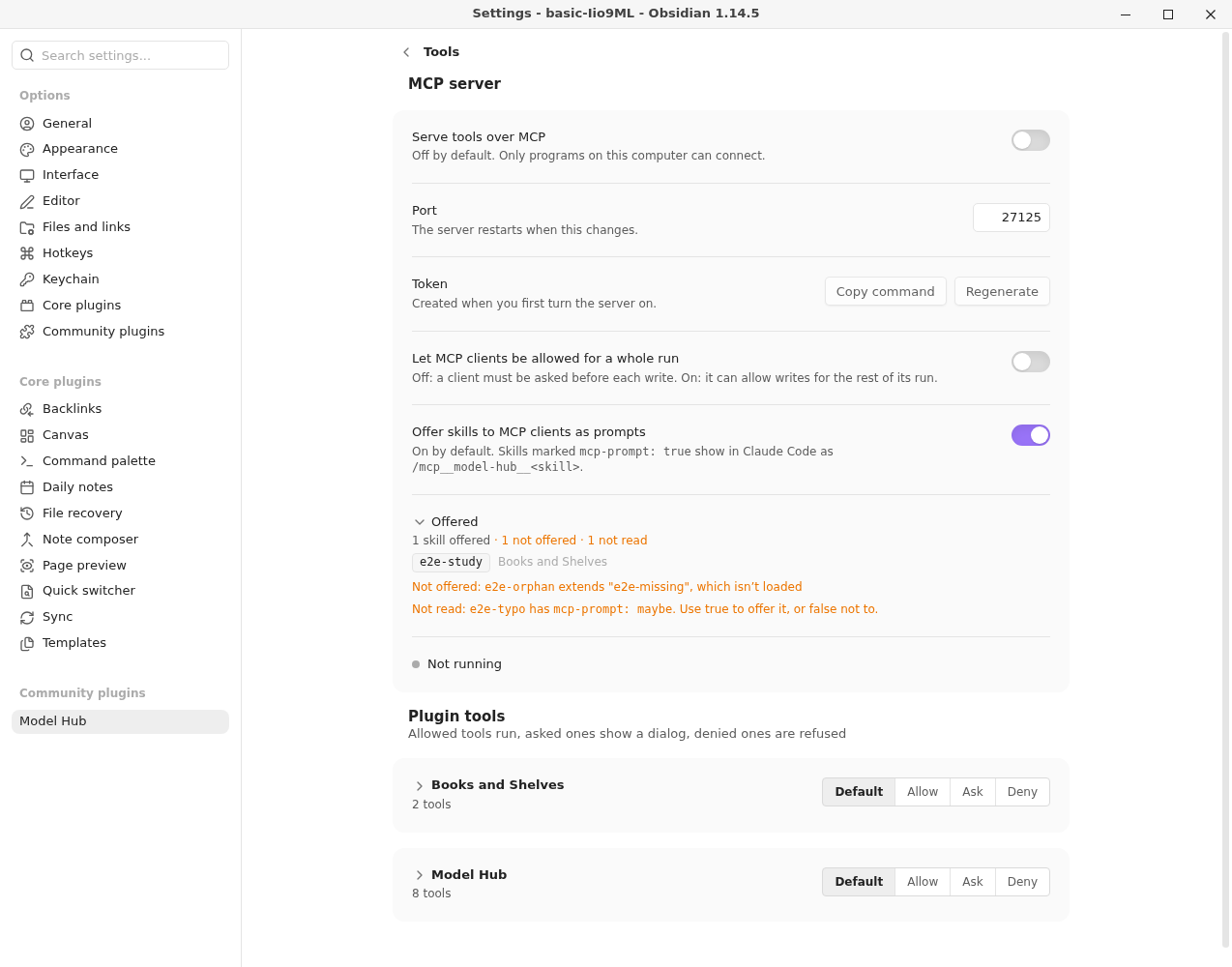
To use another port, change Port (1024 to 65535). The server restarts when you change it. If the port is taken by another program, the server switches itself off and says why.
Connect Claude Code#
Select Copy command next to Token, then paste it in a terminal:
claude mcp add --transport http model-hub http://127.0.0.1:27125/mcp --header "Authorization: Bearer <token>"
The command already holds your token and port. Claude Code's own page on adding servers is https://code.claude.com/docs/en/mcp.
Connect Claude Desktop#
Claude Desktop's Connectors settings reach a server from Anthropic's cloud, not from your computer, so they can't reach an address on this machine. Anthropic says so in https://support.claude.com/en/articles/11175166-get-started-with-custom-connectors-using-remote-mcp.
Servers that run on your own computer go in Claude Desktop's claude_desktop_config.json instead (https://modelcontextprotocol.io/docs/develop/connect-local-servers), and that file starts programs rather than naming a web address. The mcp-remote program bridges the two: Claude Desktop starts it, and it talks to Model Hub's server with your token. It needs Node.js, and its --header and --allow-http options are described at https://github.com/geelen/mcp-remote.
-
In Claude Desktop, open Settings → Developer → Edit Config to open
claude_desktop_config.json. -
Add this under
mcpServers, using the token from the copied command (the text afterBearer):{ "mcpServers": { "model-hub": { "command": "npx", "args": [ "mcp-remote", "http://127.0.0.1:27125/mcp", "--allow-http", "--header", "Authorization:${AUTH_HEADER}" ], "env": { "AUTH_HEADER": "Bearer <token>" } } } } -
Restart Claude Desktop.
If mcp-remote refuses the http:// address, --allow-http is what allows it.
The token goes in env rather than in the arguments because mcp-remote's own page says spaces inside arguments are mangled on some systems, and spaces in environment values are fine.
Connect Codex#
Codex reads MCP servers from ~/.codex/config.toml, and can take a bearer token from an environment variable (https://developers.openai.com/codex/mcp). Add:
[mcp_servers.model-hub]
url = "http://127.0.0.1:27125/mcp"
bearer_token_env_var = "MODEL_HUB_MCP_TOKEN"
Then set MODEL_HUB_MCP_TOKEN to the token (the text after Bearer in the copied command) in the shell that starts Codex.
Run a skill from Claude Code#
A marked skill shows in Claude Code as a slash command named /mcp__model-hub__<skill>. Type / to see them. Each takes one optional argument, focus: what to work on, such as a Study, a book or a question.
/mcp__model-hub__study-reading-a-book Study "Fermentation", the book "The Noma Guide to Fermentation"
Claude Code gets the skill's instructions (with the skill it builds on first, and its supporting files), then your focus as the task, and works from there with the tools the Hub serves. A very long skill is cut at 100 000 characters, and the prompt says so.
Claude Desktop shows prompts in its + menu. Other clients show them if they support MCP prompts; check your client's docs.
To stop offering skills, turn off Offer skills to MCP clients as prompts on the Tools page. Connected clients are told at once.
Another client#
Any client that speaks MCP over HTTP can connect. Give it the address http://127.0.0.1:27125/mcp and the header Authorization: Bearer <token>. Check your client's docs for where each goes.
How it behaves#
- One run per session. Each MCP session is one run. It has no budget for model calls ($0), since a client calling tools doesn't need Model Hub's models. Its tool calls are logged under the client's name, such as
mcp:claude-code, and the usage view can filter to it. - Sessions end when the client disconnects, or after 30 minutes with nothing happening. A session with its notification stream open counts as in use. A client that finds its session gone starts a new one.
- Refusals are tool errors. A denied, invalid or failed call comes back as an error result with the code and message, so the agent can read why and carry on.
- The tool list stays current. When a plugin registers or removes tools, connected clients are told.
- Prompts cost nothing. Fetching a prompt runs no tool and no model, so it is not in the tool-call log; with traces on it is a
get_prompt <skill>span. The prompt list stays current like the tool list. - Approval dialogs open in Obsidian. An agent asking for a write waits for you to answer there; after 2 minutes the call is refused.
Keep it safe#
- Only this computer. The server listens on
127.0.0.1, never on your network. - A token is required. It is 32 random bytes, made the first time you switch the server on and kept in Obsidian's keychain, never in the settings file. The token is never shown on screen; Copy command puts it on your clipboard.
- Web pages can't use it. A browser can reach localhost, so the server refuses any request that carries an
Originheader, or that names a host other than127.0.0.1orlocalhoston its port. Programs that are not browsers send neither. - Writes still ask. Reads run freely and writes ask, unless you changed that on the Tools page.
To cut off every client that has the token, select Regenerate. The old token stops working at once, and each client needs the new command.
If it doesn't connect#
| What you see | Why, and what to do |
|---|---|
| The server switched itself off with a notice | The port is in use. Pick another Port. |
401 and mcp-unauthorized | The token is wrong or missing, or you regenerated it. Copy the command again. |
403 and mcp-forbidden | The client sent an Origin header or another host. Use 127.0.0.1 as the address. |
404 and mcp-not-found | The address must end in /mcp. |
| The client sees no tools | No plugin has registered tools yet, or the plugin is disabled. Check the Tools page. |
| The client lists no prompts | No skill is marked mcp-prompt: true, the switch is off, or the skill extends one that isn't loaded. Under Offered on the Tools page (select it to open the list), you see what is offered and what isn't, and why, and any skill whose mcp-prompt value can't be read. |